Custom program
This feature is available for Advanced and above plans
The Custom Program allows you to create flexible earning programs with triggers beyond the default options.
You can reward customers for any activity you define — whether it happens on your storefront, through a custom event, or inside Shopify Flow.
Each trigger action gives you more freedom to build unique, personalized experiences and automate loyalty rewards based on your own business logic.
1. Visit a page
🧩 Overview
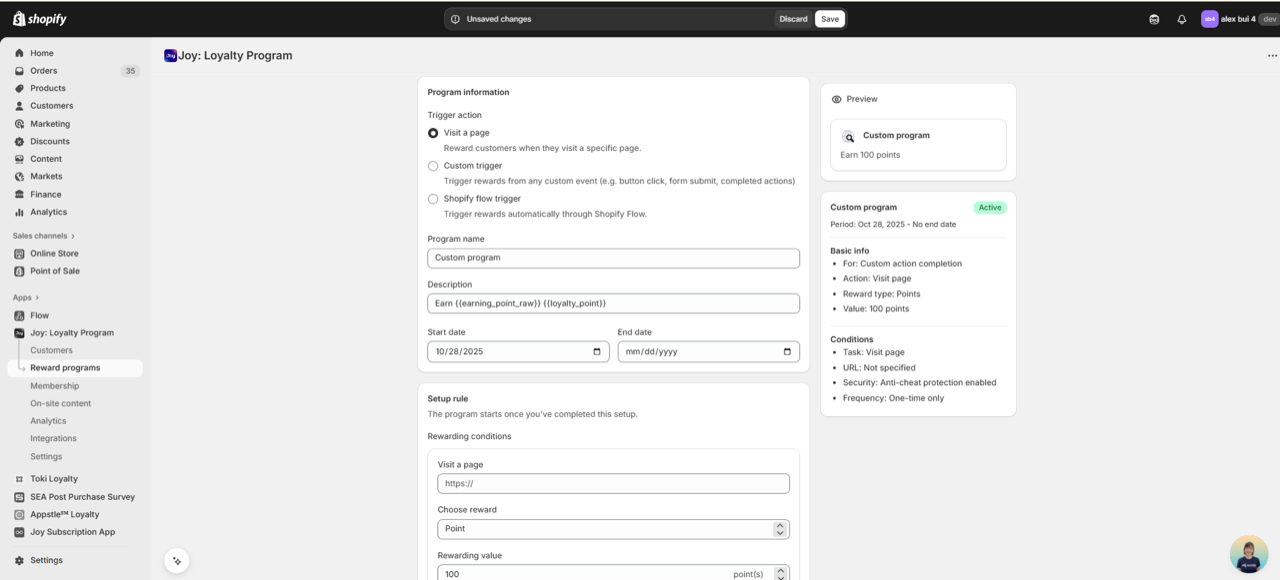
This trigger allows you to reward customers when they visit a specific page on your storefront.
You can use it to create engaging earning activities, such as visiting your new collection, blog, or campaign landing page.
This is a great way to encourage traffic to important pages on your site.
⚙️ How to set up
Go to Reward programs → Custom Program → Trigger action → Visit a page
Enter:
- Program name
- Page URL (exact page or contains specific keywords)
- Reward points
- Start / End date (optional)
Enable Fraud prevention if you want to limit repeated actions from the same customer.
Click Save to create the program.
Turn on the program when ready.
🧍 Customer experience
Once active, the program appears in your loyalty widget and loyalty page.
When a customer visits the configured URL, Joy automatically records the action and adds reward points.
❓FAQ
Q: Can I track visits for multiple pages?
A: Yes. You can create multiple custom programs, separate each program for each URL.
Q: Do I need to add any code?
A: No. Joy automatically tracks page visits once the program is active.
2. Custom trigger
🧩 Overview
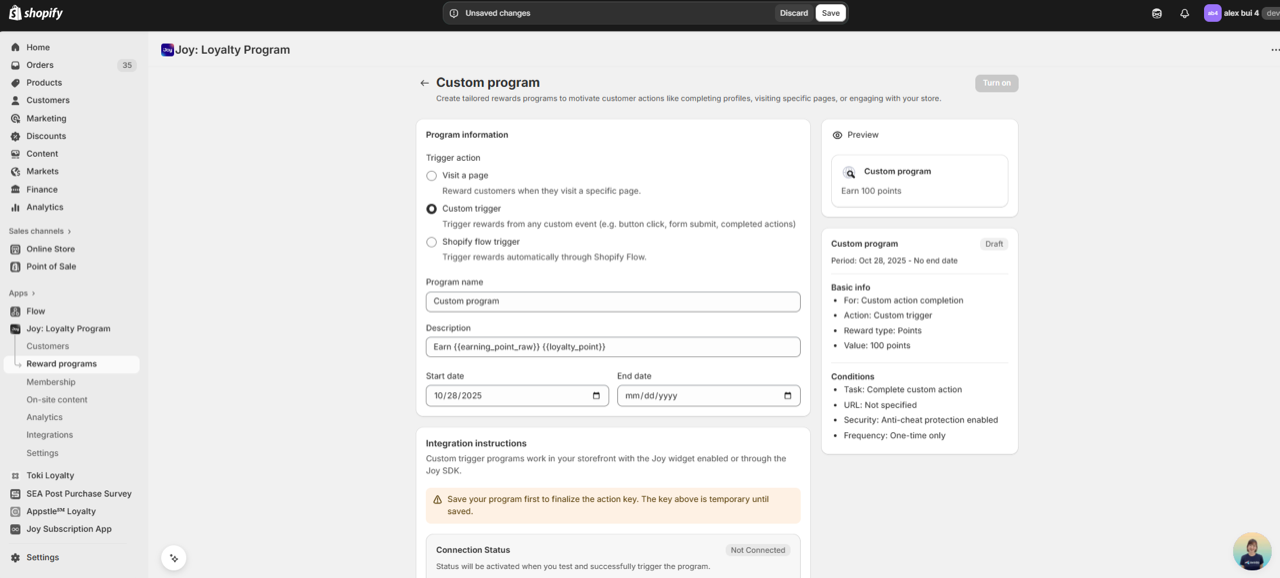
The Custom trigger option lets you define your own event on your website — such as button clicks, form submissions, or any custom interaction — and reward customers when it happens.
This gives merchants maximum flexibility to connect Joy with any activity on their storefront or POS system.
⚙️ How to set up
Go to Reward programs → Custom Program → Trigger action → Custom trigger
Create a new program by entering:
- Program name
- Reward points
- Start / End date (optional)
- Show on — choose where the program is available:
- Online store only (default)
- Online store & Point of Sale — also shows the program inside the Joy POS app so staff can reward customers in-store
- Click Save
→ Joy automatically generates an action_key.
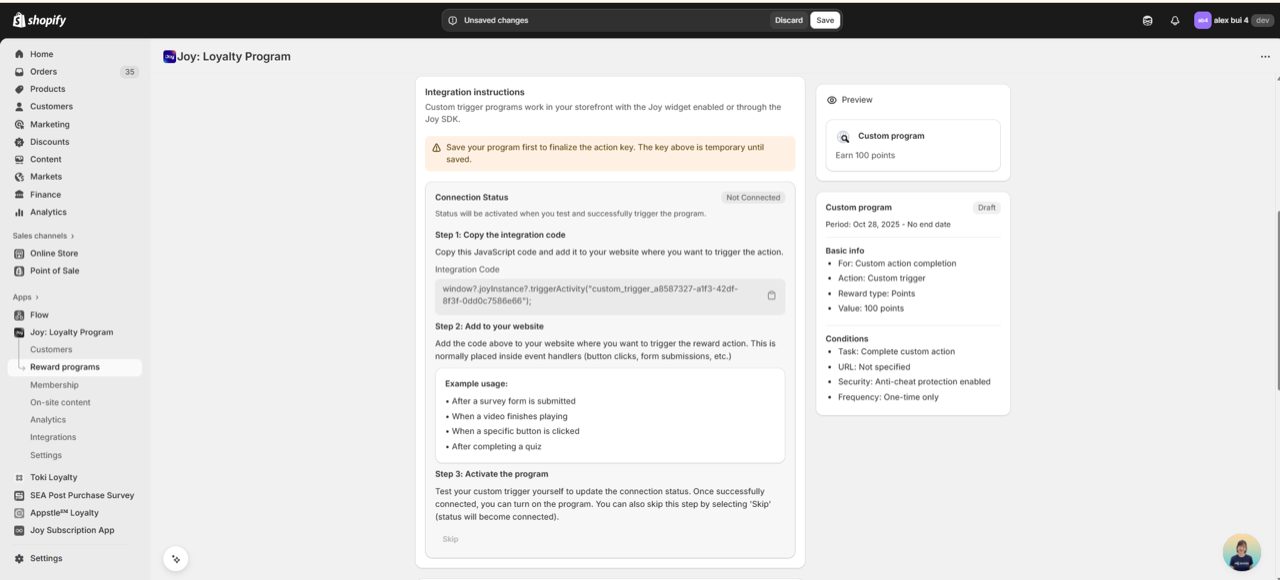
In the integration guide shown in-app:
-
Step 1: Copy the JS snippet provided.
-
Step 2: Add the code generated to your website where you want to trigger the reward action. This is normally placed inside event handlers (button clicks, form submissions, etc.)
Example usage:
• After a survey form is submitted
• When a video finishes playing
• When a specific button is clicked
• After completing a quiz
-
Step 3: Activate the program
Test your custom trigger yourself to update the connection status. Once successfully connected, you can turn on the program. You can also skip this step by selecting 'Skip' (status will become connected).
You can skip the connection test and turn it on directly — just make sure the integration code is correctly placed as intend.
Show on Point of Sale is available on plans that include POS. If your current plan doesn't support it, Joy will prompt you to upgrade when you pick Online store & Point of Sale.
🧍 Customer experience
Once the program is active:
- Online store — when the custom trigger fires (for example, a button click or form submit), Joy receives the event and rewards the customer automatically.
- Point of Sale — staff can manually reward customers in-store. See the next section for the cashier flow.
🛒 Running custom trigger programs on POS
When Show on is set to Online store & Point of Sale, custom trigger programs appear inside the Joy POS app so cashiers can reward customers for any in-store action you define — completing a tasting, attending a workshop, sharing on social media at checkout, etc.
Where it appears
- Joy: Loyalty Programs POS tile → Custom programs tab
- Customer details screen → Joy customer block (also lists eligible custom programs for the selected customer)
Cashier flow
Attach the customer to the cart (or open the customer record).
Open Joy POS → switch to the Custom programs tab.
Pick the program the customer has just completed in-store.
Tap Complete.
Joy rewards the customer with the configured points and shows a check mark on the program so it's clear it has been completed.
Limits and safeguards
- The program respects the same earning limit / fraud prevention rules you set in the admin. If the customer has already hit the limit, tapping Complete will show an error and no points are awarded.
- Each tap counts as one earn event for the attached customer — make sure the right customer is selected before tapping.
❓FAQ
Q: What if I skip the connection step?
A: That's fine — just ensure the trigger code is added correctly. Once the trigger runs, Joy will recognize it automatically.
Q: Is coding required?
A: A basic understanding of HTML/JS is recommended to install the trigger code properly. For POS-only use, no code is needed — staff award points by tapping Complete in the Joy POS app.
Q: Can the same custom program run on both online store and POS?
A: Yes. Set Show on to Online store & Point of Sale. Online customers earn automatically when the JS trigger fires; in-store customers earn when a cashier taps Complete in Joy POS. Earning limits apply across both channels.
Q: I don't see the Custom programs tab in Joy POS.
A: Check that (1) the program is turned on, (2) Show on is set to Online store & Point of Sale, and (3) a customer is attached to the cart. The tab only lists programs eligible for the selected customer.
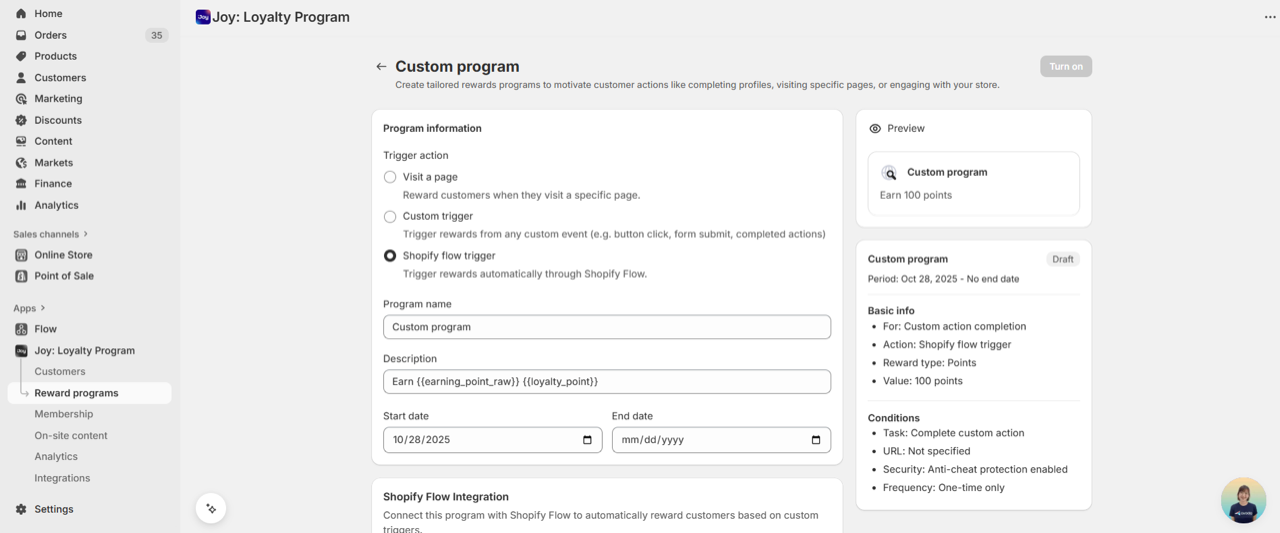
3. Shopify Flow trigger
🧩 Overview
This trigger allows you to connect Joy Loyalty directly with Shopify Flow, so you can reward customers based on any Flow automation — for example, when a customer makes a purchase, submits a form, or meets certain conditions.
This makes your loyalty program more flexible and powerful, integrating seamlessly into your existing Shopify automation workflows.
⚙️ How to set up
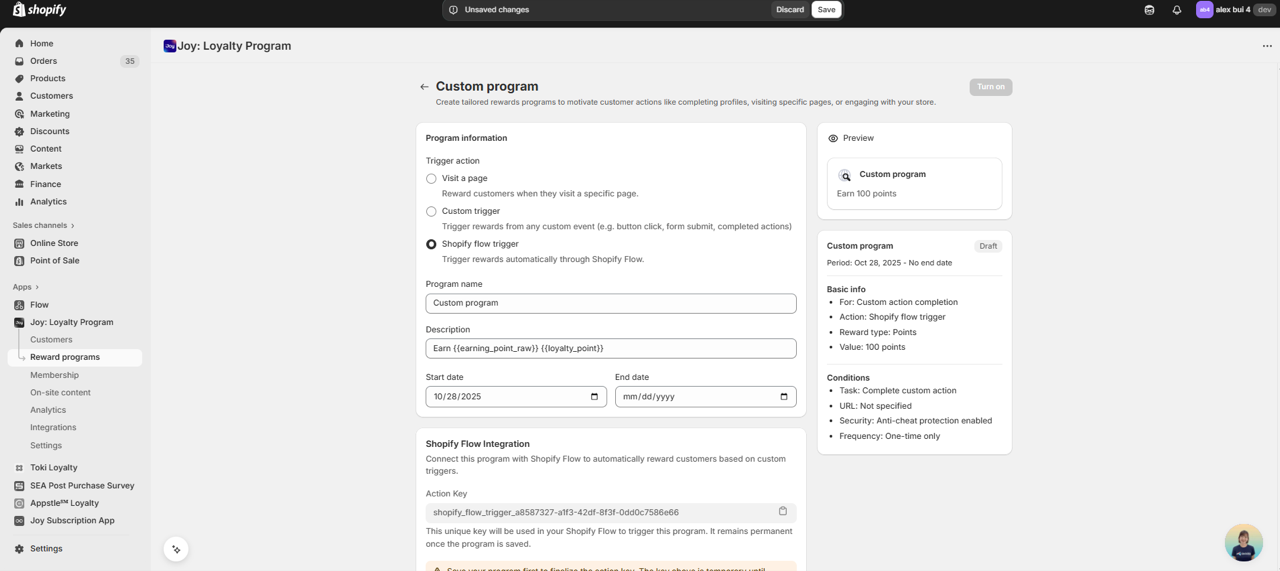
Go to Reward programs → Custom Program → Trigger action → Shopify Flow trigger
Create a new program:
- Enter program name, reward points
- Click Save
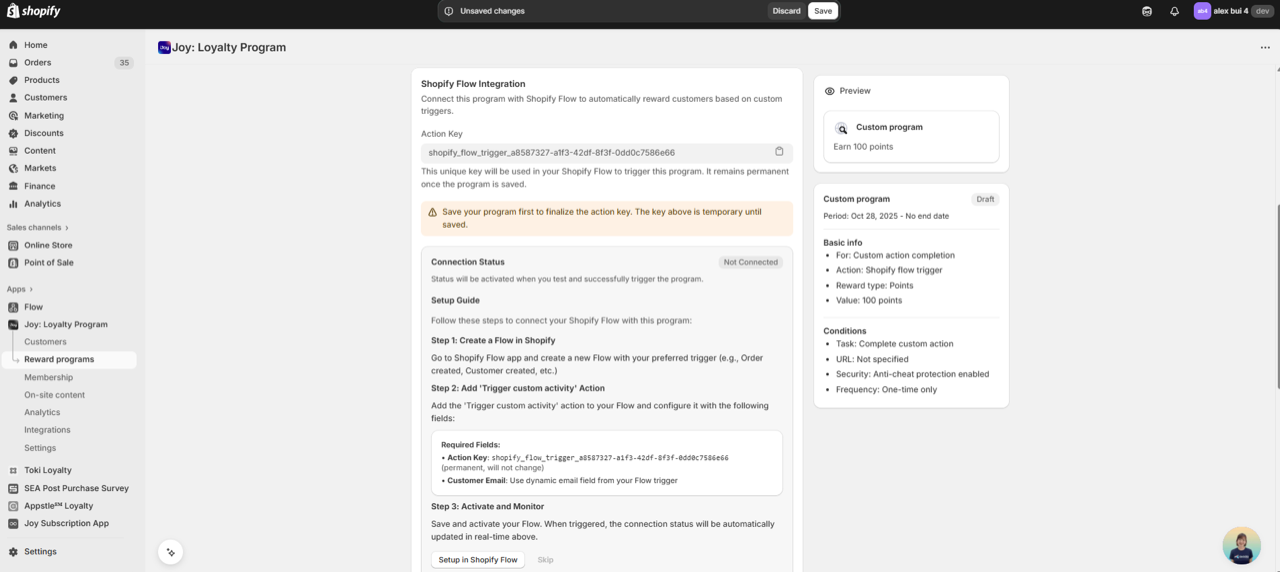
→ Joy generates a unique action_key and sets the program asdraft.
Open Shopify Flow and create a new flow with your desired use case
Add an action → Run a custom program in your use case flow
- Fill in:
action_key: copied from Joyemail: customer email variable from Flow trigger, you can add by click add variable and search for email
- Save the flow
- Run a test by trigger the flow and the Run a custom program action
Go back to Joy
- Once Joy detects a call from Shopify Flow with that
action_key, the status changes to Connected. (Joy will automatically check for conection status)
Click Turn on to activate the program.
🧍 Customer experience
Once the program is turned on:
Whenever the connected Flow runs and the action is triggered, Joy will automatically reward customers with the points defined in your custom program.
❓FAQ
Q: What if my Flow doesn’t show up in Joy?
A: Make sure the Flow has been triggered at least once and that the action_key matches exactly.
Q: Is Shopify Flow required to use Joy?
A: No. Shopify Flow is optional — you can still use the “Visit a page” or “Custom trigger” options instead.