[Guide for Staff] How to add wallet pass directly at POS
A step-by-step guide for store staff to help customers add their Joy Loyalty pass to Apple Wallet or Google Wallet directly at POS
How to Add Loyalty Pass to Wallet for Customers
A step-by-step guide for store staff to help customers add their Joy Loyalty pass to Apple Wallet or Google Wallet directly at POS
📱 What is a Wallet Pass?
A wallet pass allows customers to store their loyalty pass in their phone's wallet app (Apple Wallet or Google Wallet). This means:
- ✅ No need to open a browser or app
- ✅ Quick access from lock screen
- ✅ Just scan the barcode/QR code to earn and redeem points
Requirements:
- Apple Wallet: iPhone with iOS
- Google Wallet: Android phone with Google Wallet app installed
💳 How to Add Loyalty Pass to Wallet
Step 1: Create customer account (if needed)
Open Shopify POS and create a new customer or find existing customer:
- Tap Customers → Add customer or search for existing customer
- Enter basic information: Name, Email, Phone number, Date of birth
- Tap Save
If customer already exists in your system, skip this step and go directly to Step 2.
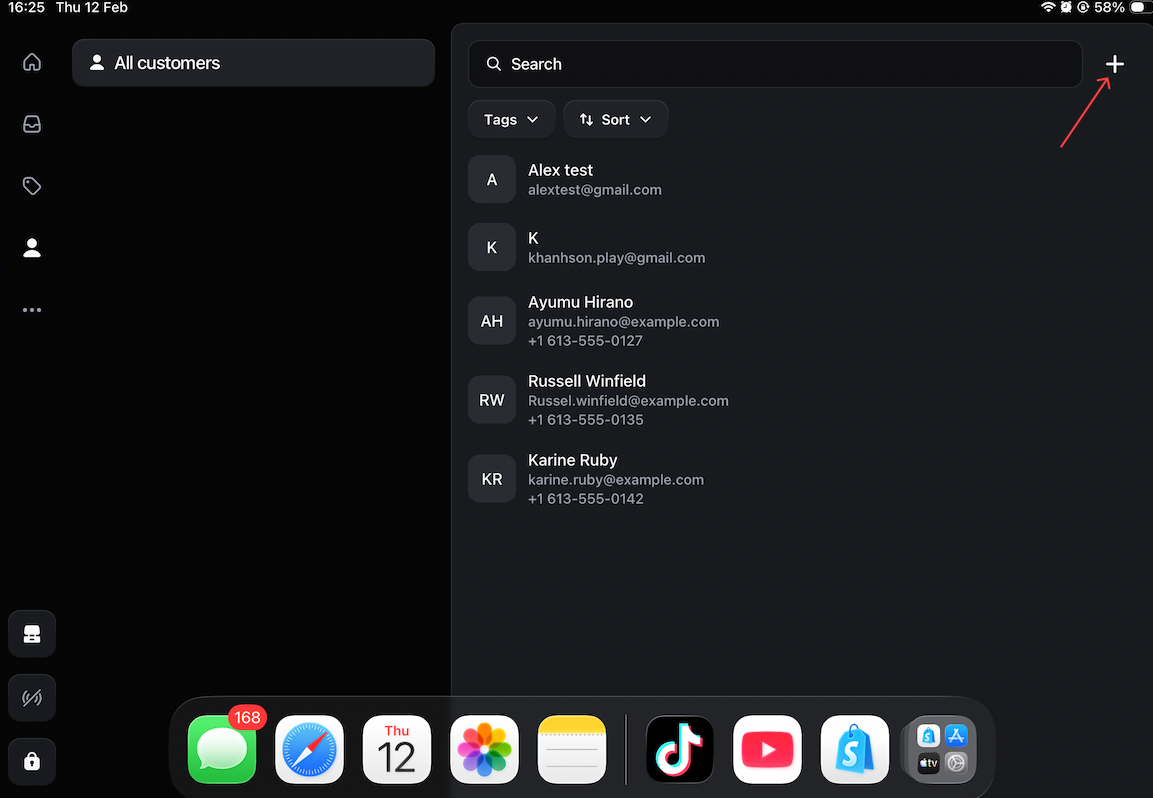
Enter customer’s info and hit “Save”
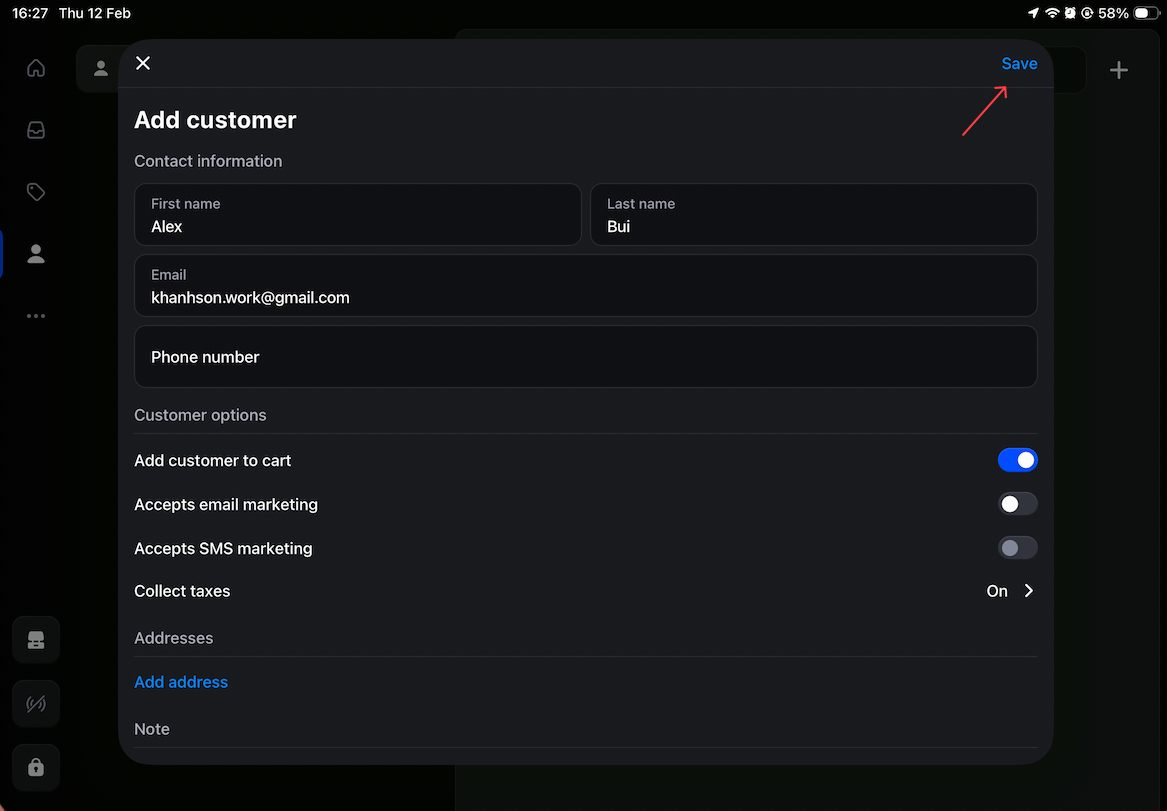
Step 2: Add customer and product to cart
Before opening Joy Loyalty app, you must:
Add the customer to the cart (tap customer icon and select/create customer)
Add at least one product to the cart
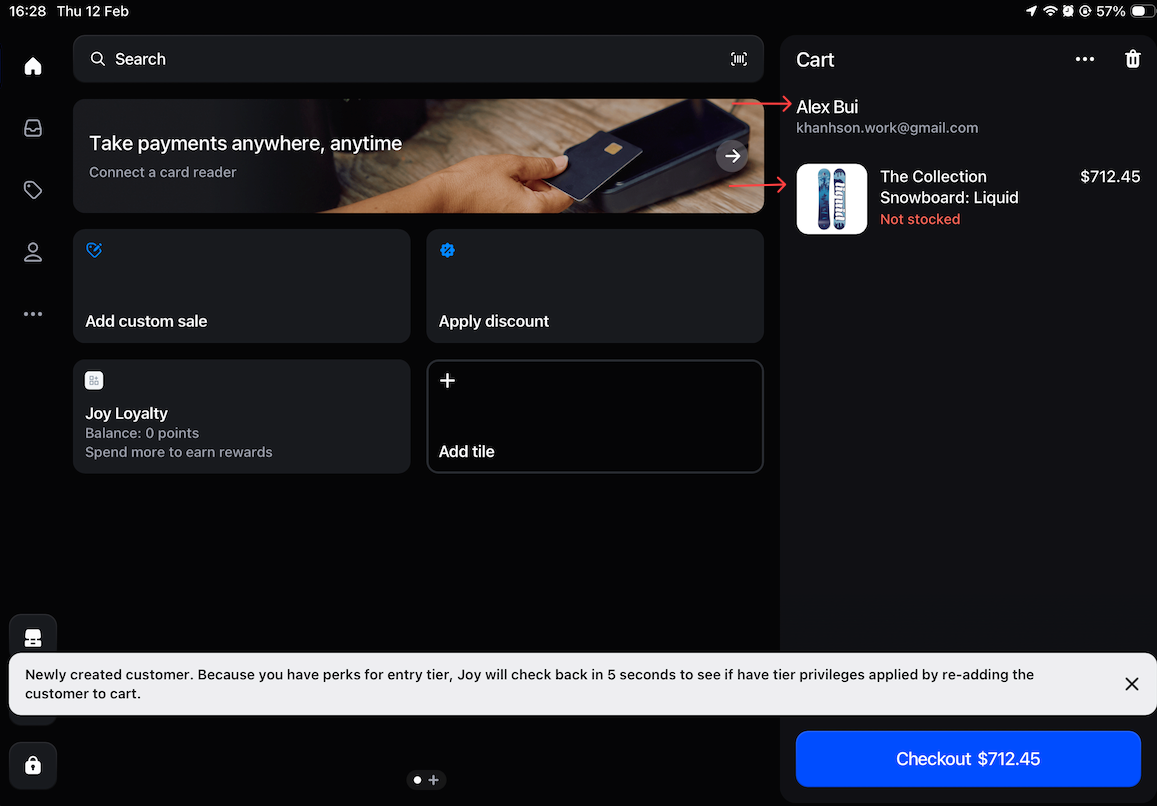
Step 3: Open Joy Loyalty app
Tap the Joy Loyalty icon in Shopify POS. The app will automatically load with the customer from your cart.
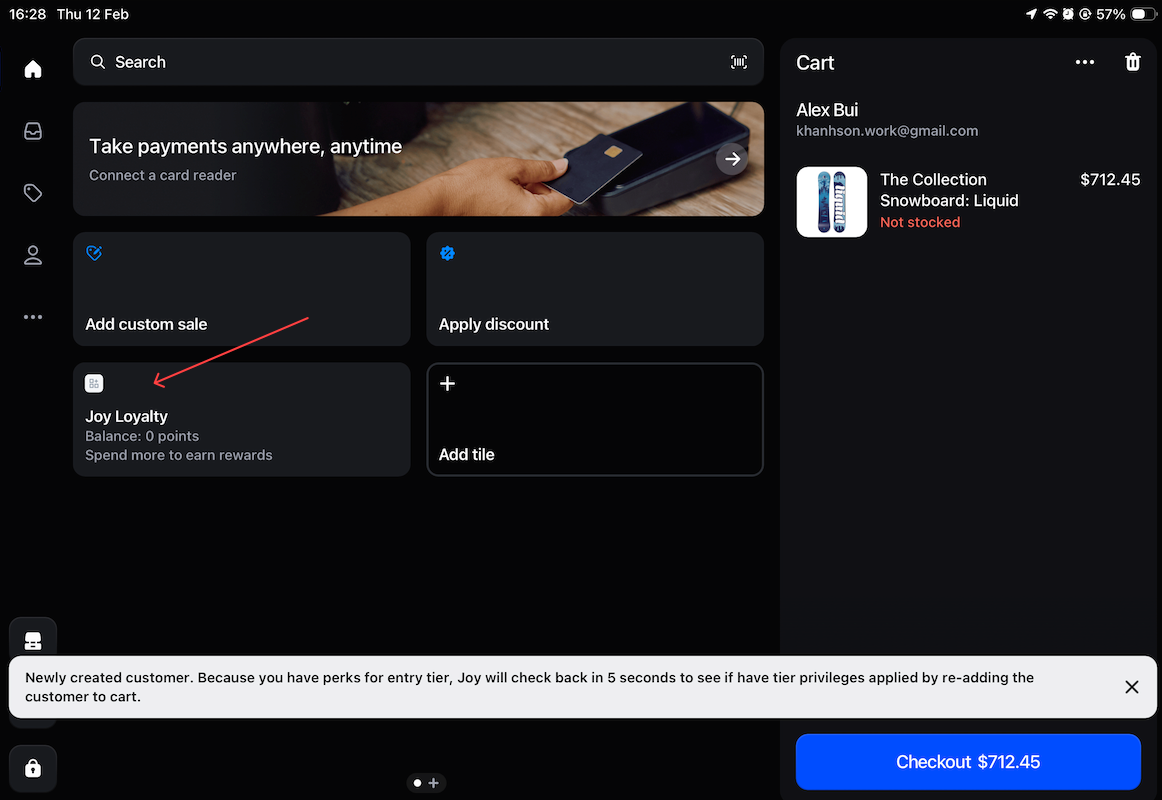
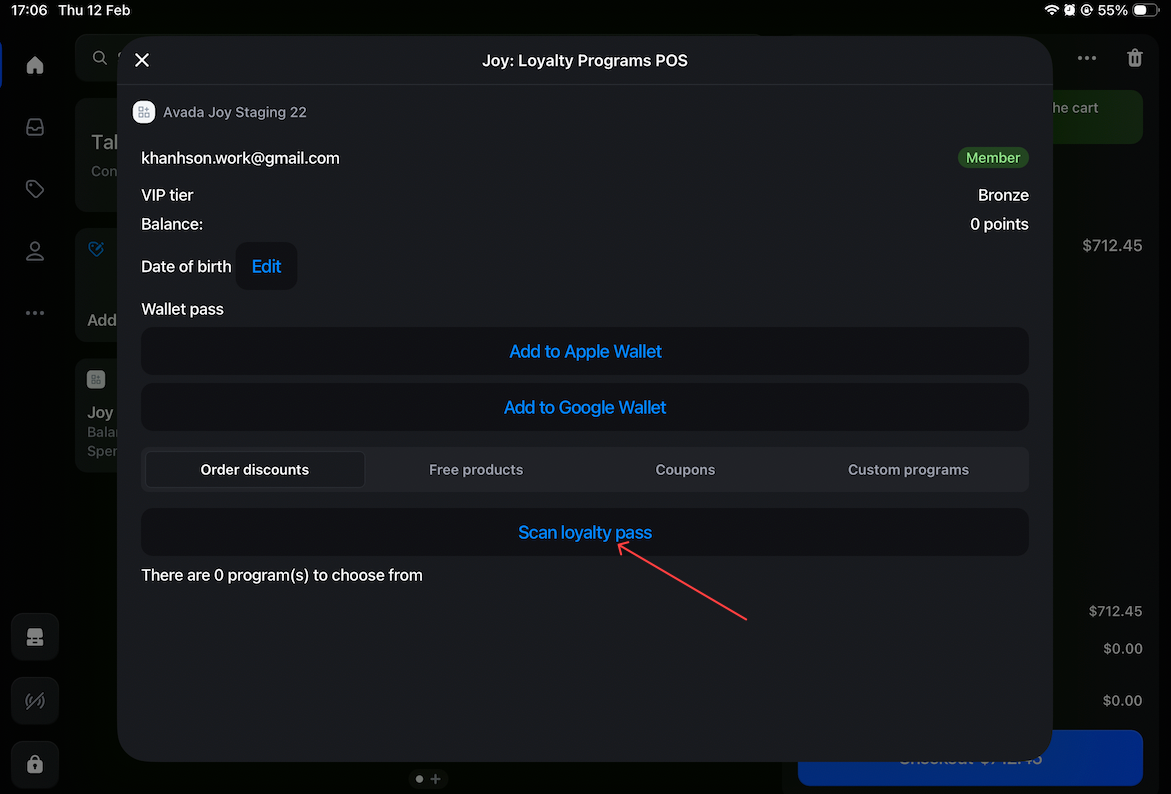
Step 4: Scroll down to "Wallet pass" section
You will see:
- [Add to Apple Wallet] and [Add to Google Wallet]
- Click on button [Add to Apple Wallet]
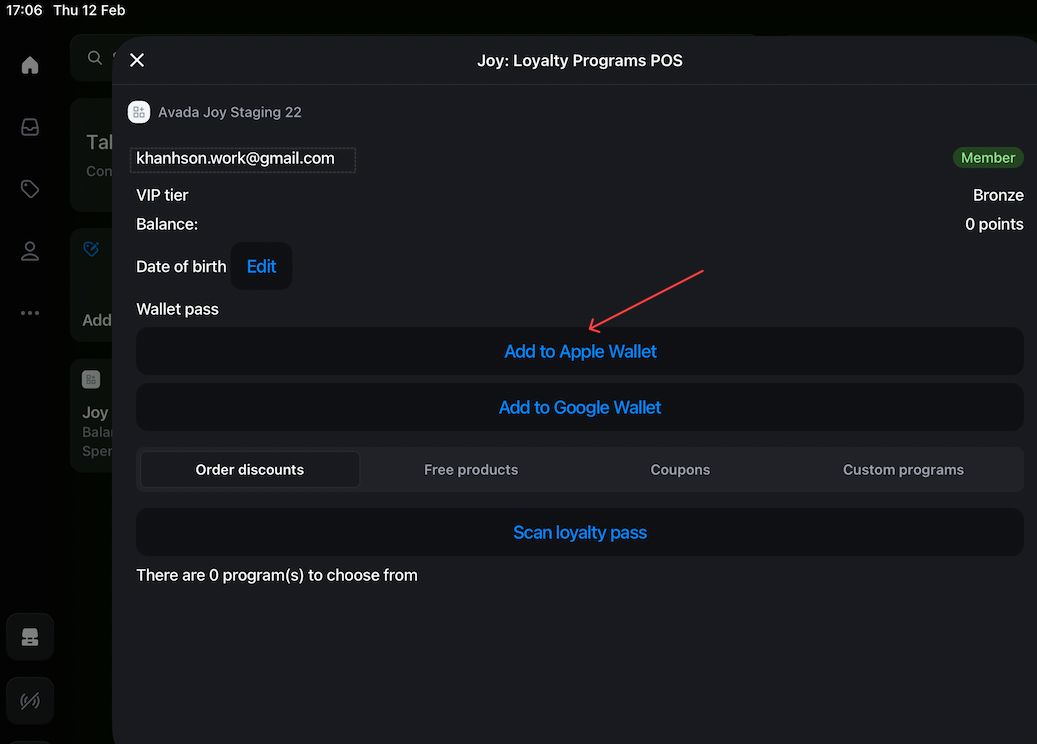
A. 🍎 Add to Apple Wallet
- Tap "Apple wallet" button, the QR code for Apple Wallet will appear on screen.
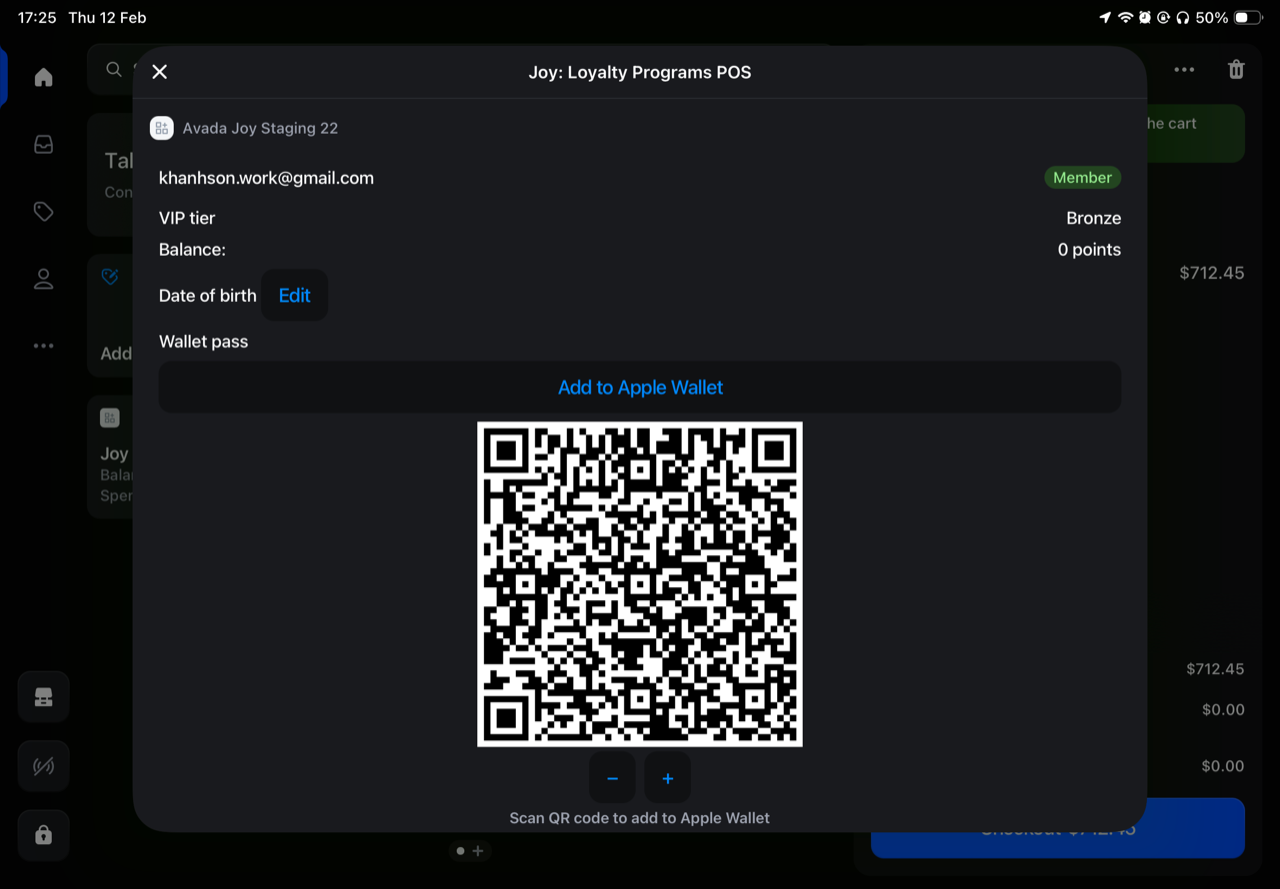
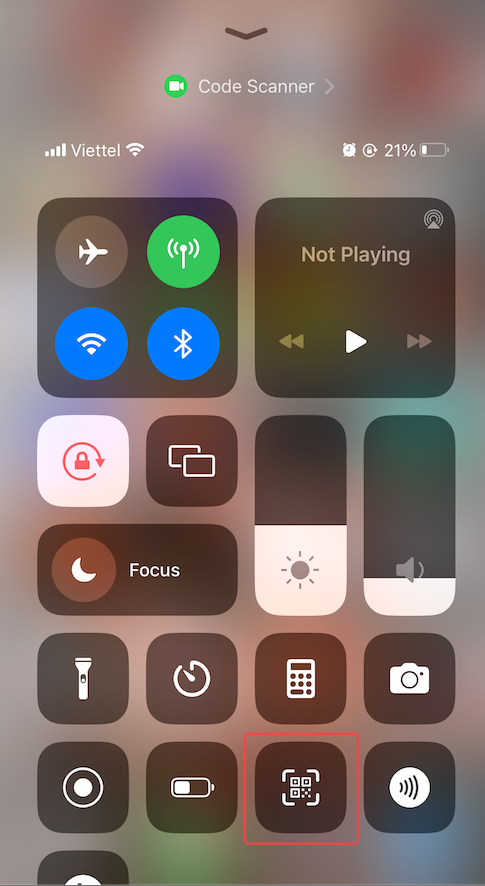
- Customer opens QR code scanning feature on their iPhone
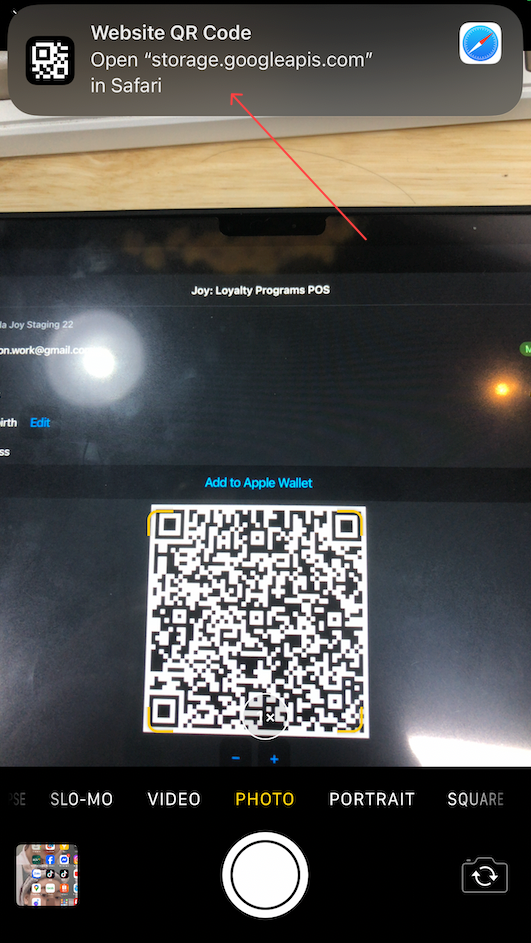
- Points camera at the QR code shown aboved (Step 1) and a link will appear, click on the link:
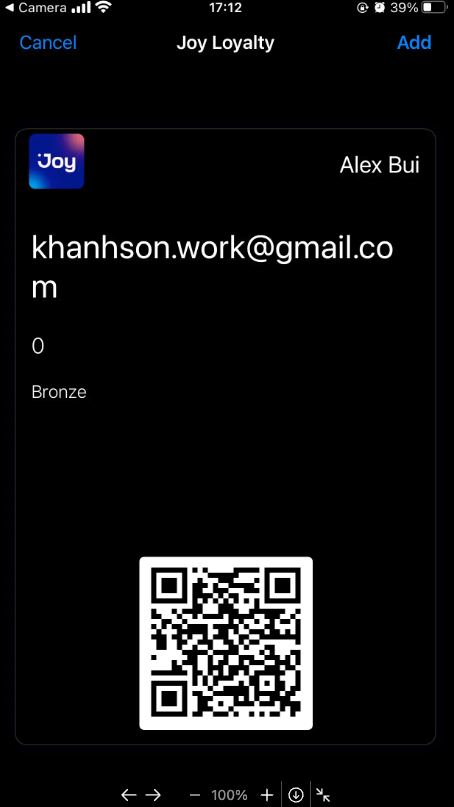
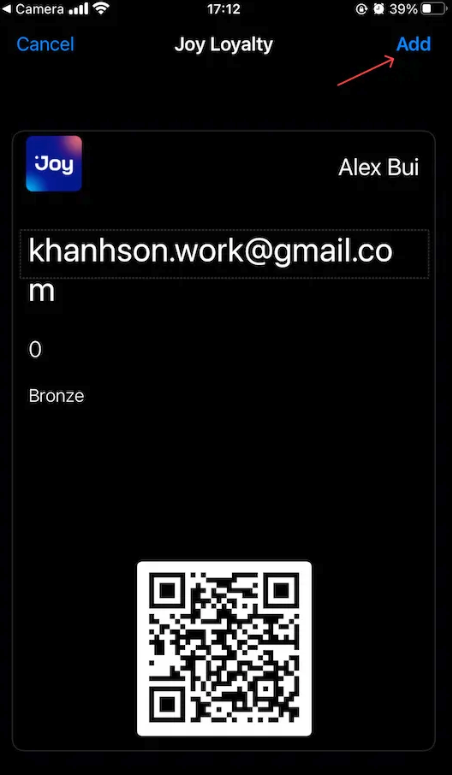
- Taps Add to add the pass to Apple Wallet
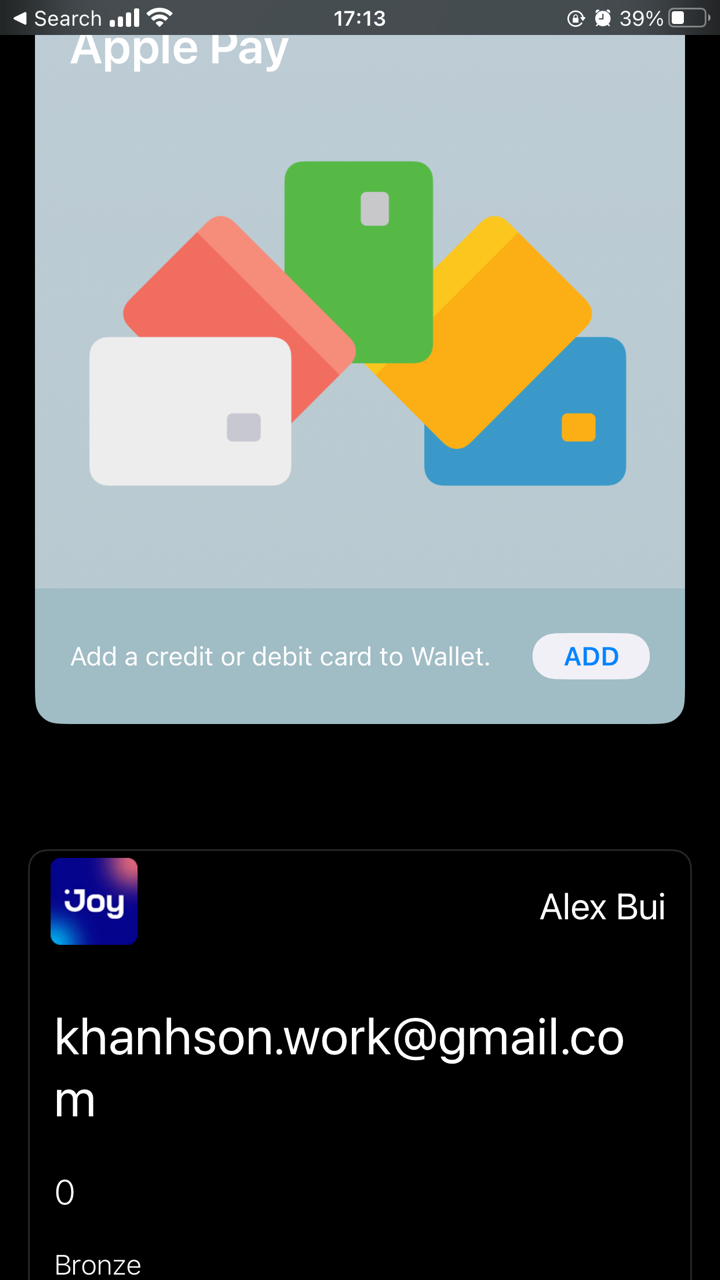
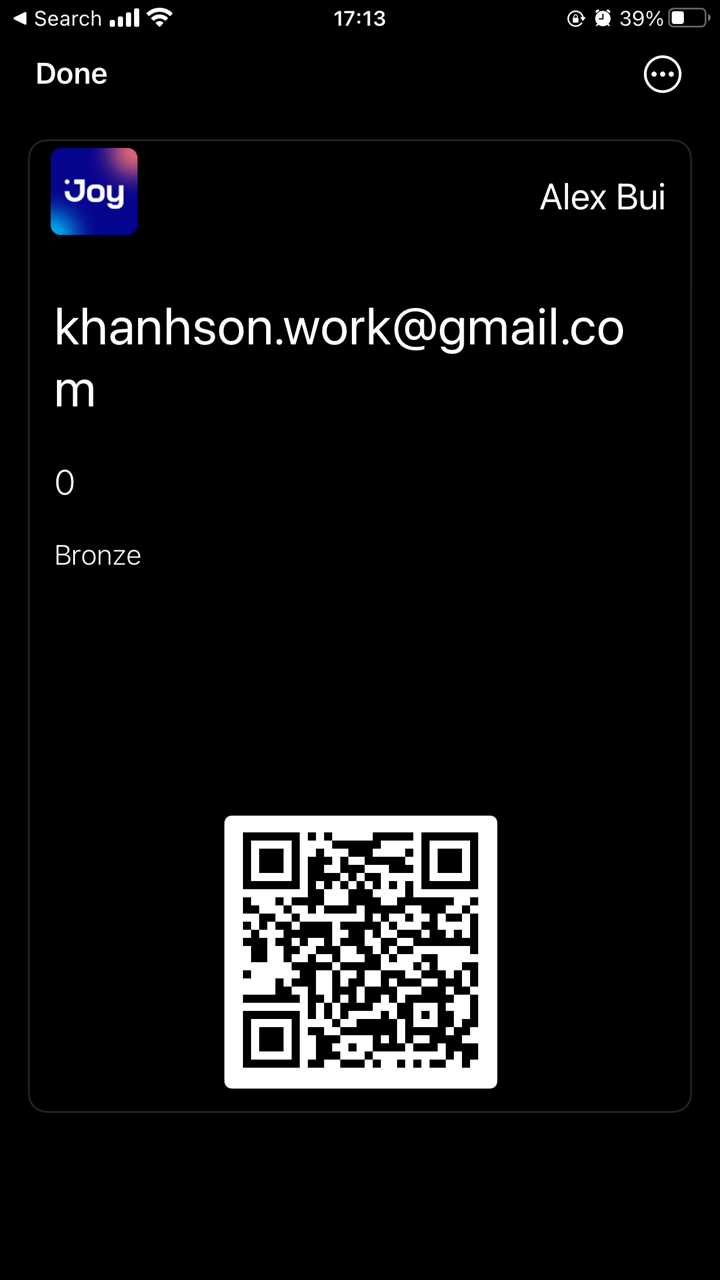
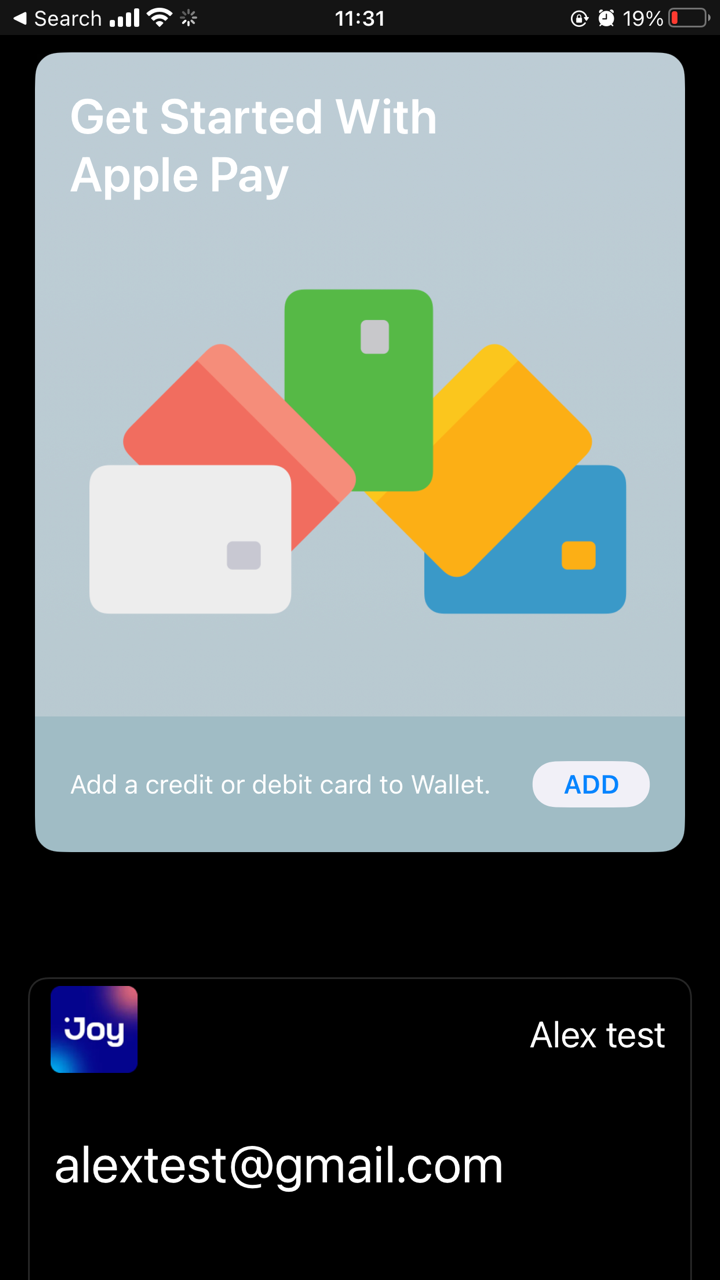
Added successfully! The loyalty pass should now appear in the customer's Apple Wallet app:
B. 🤖 Add to Google Wallet
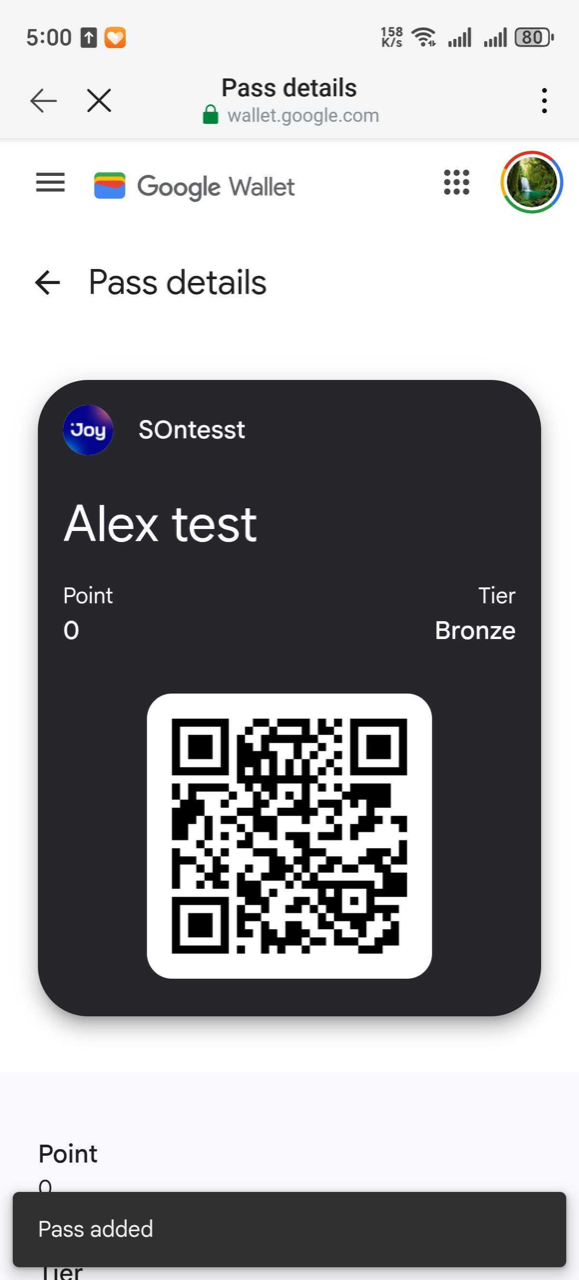
- Tap "Google wallet" button, the QR code for Google Wallet will appear on screen.
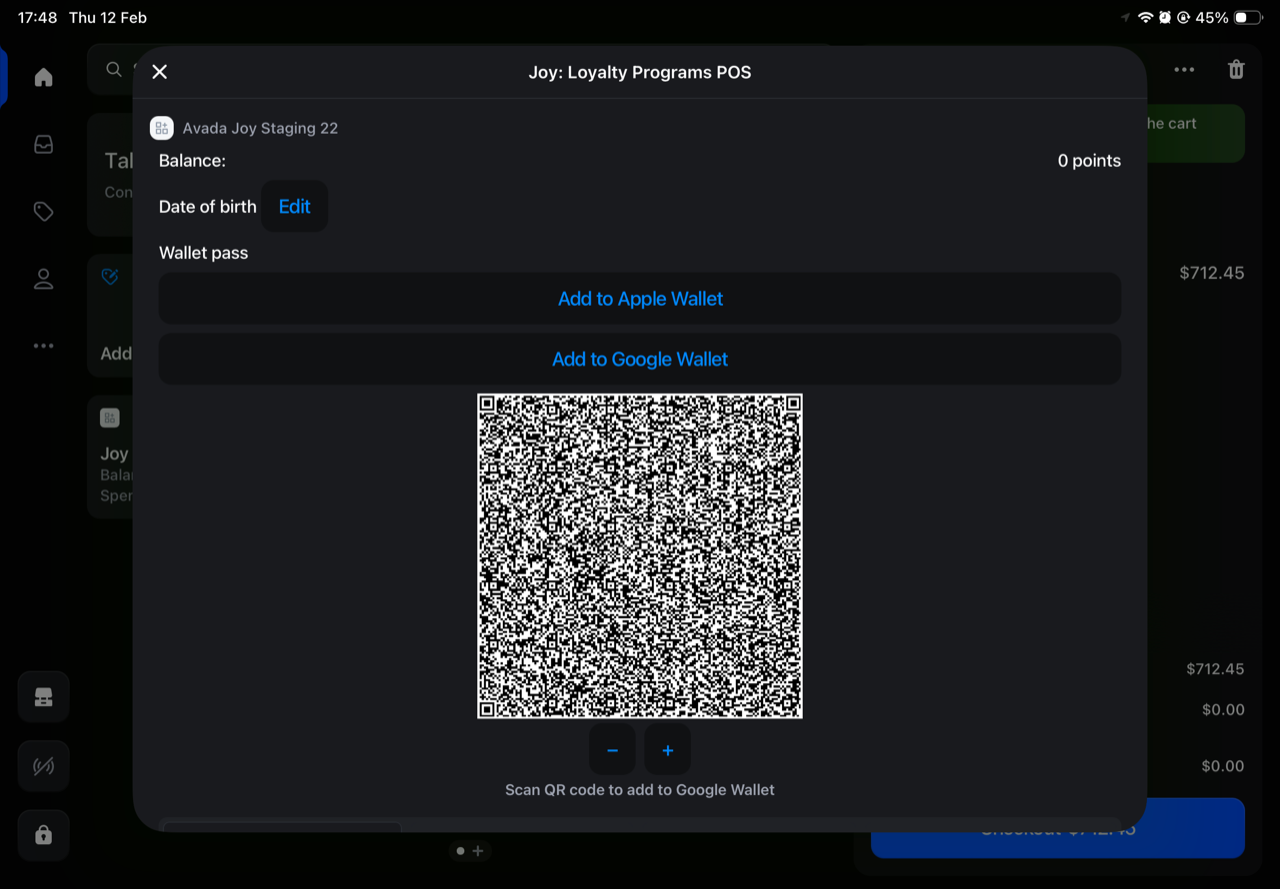
- Customer opens an app that can scan QR codes on their Android phone (such as Camera, Google Lens, or any QR scanner app) and scan above QR code:
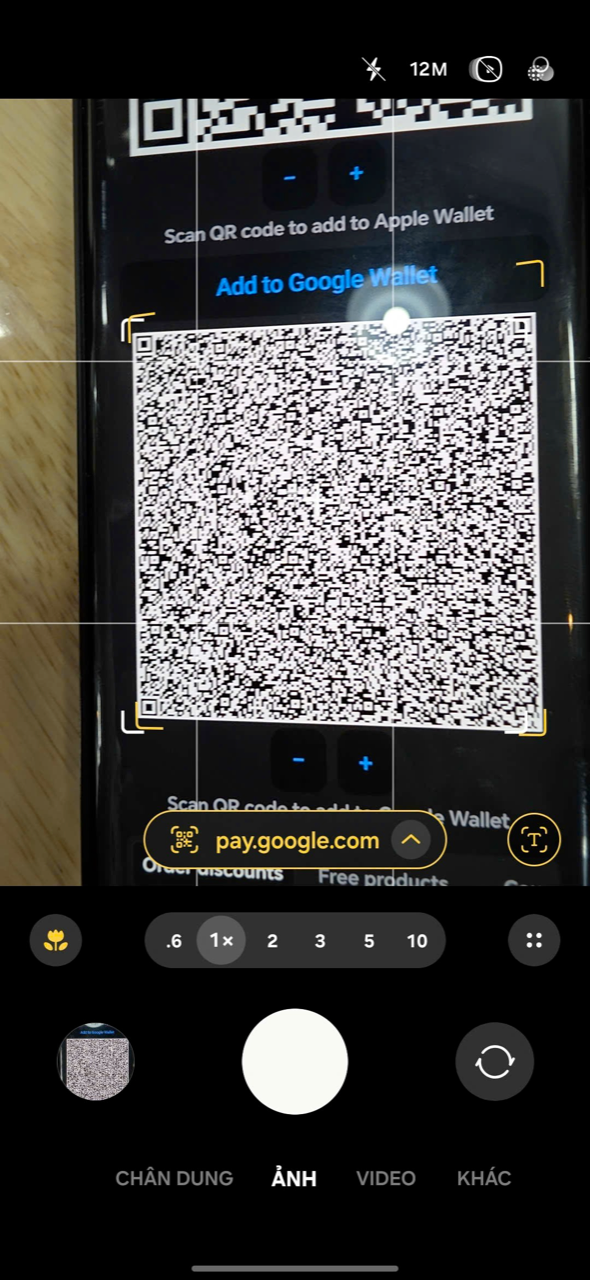
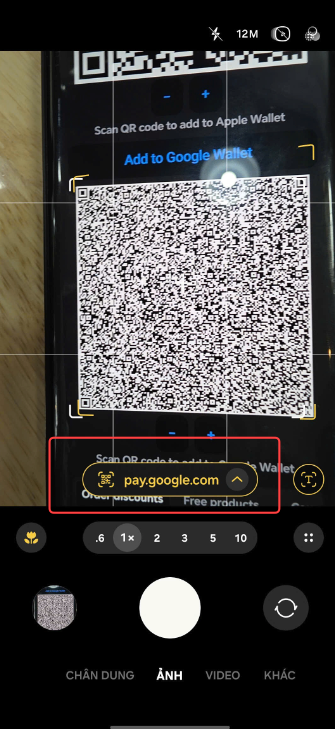
- A link will appear, click on the link
- Click add
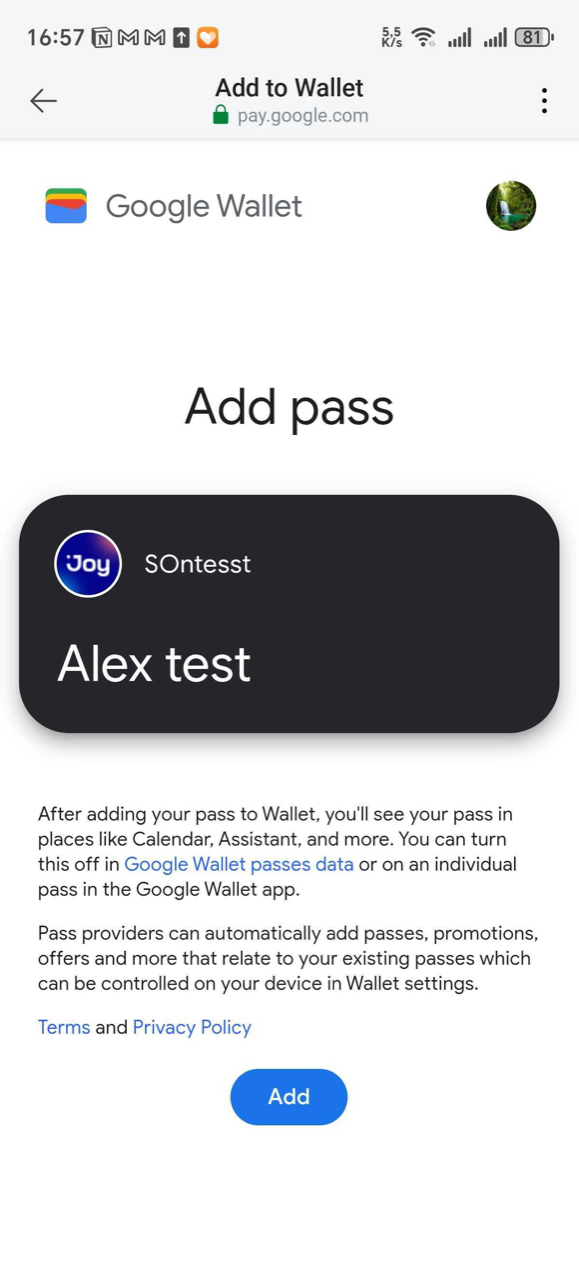
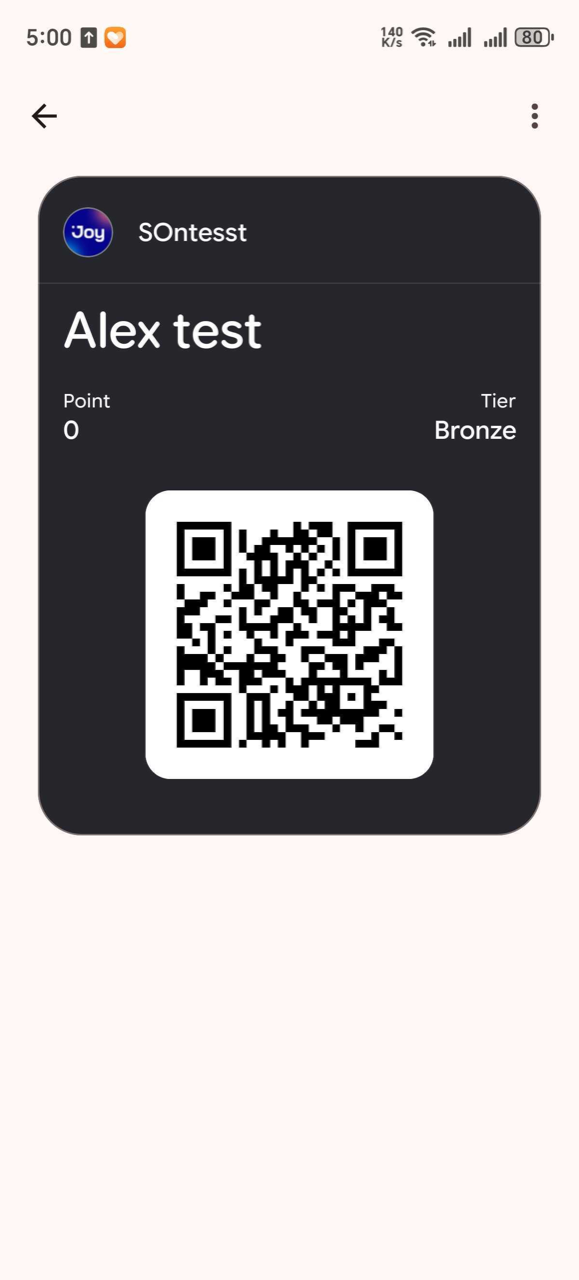
- Added successfully! The loyalty pass should now appear in the customer's Google Wallet app.
✨ How Customers Use Their Wallet Pass
When the customer returns to your store:
- Customer opens their Wallet app (Apple Wallet or Google Wallet)
- Selects the Joy Loyalty pass added
- Shows the barcode/QR code to staff
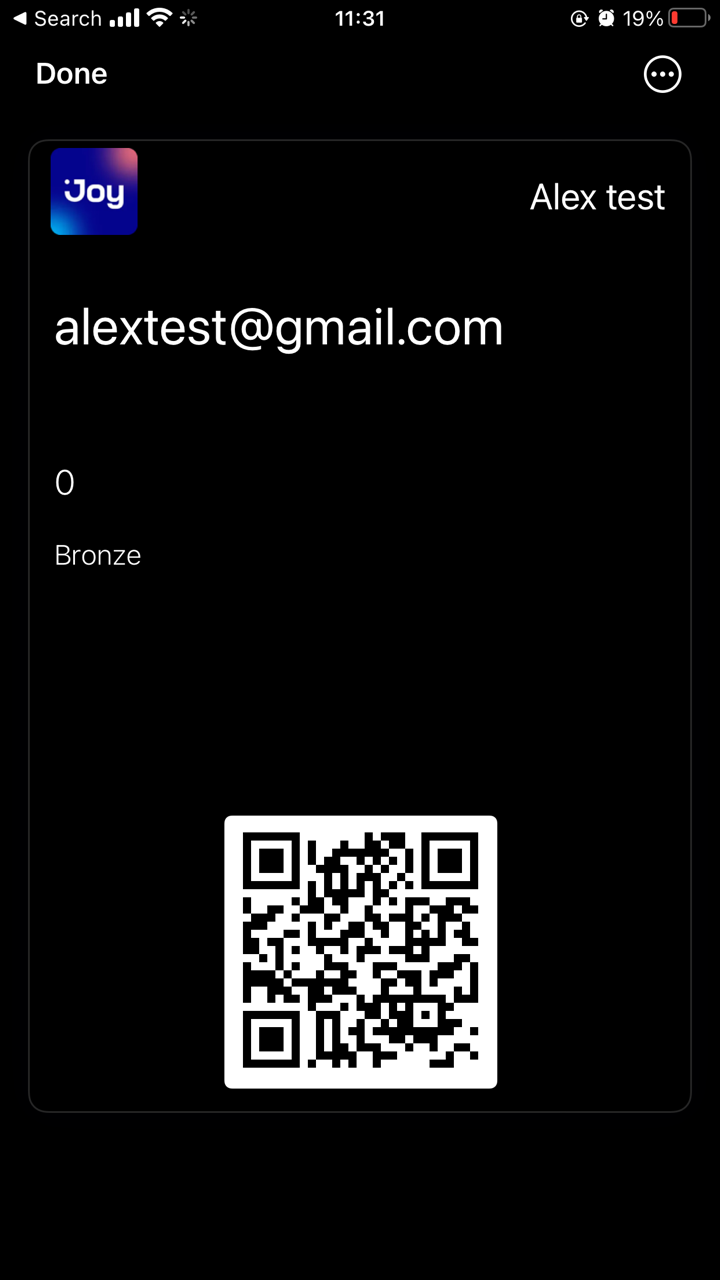
- Staff scans the code to look up customer information, apply points/discounts, or process redemption
❓ Troubleshooting Tips
QR code won't scan:
- ✅ Make sure there is good lighting
- ✅ Hold the phone steady and at the right distance
Customer doesn't have iPhone or Android:
- ✅ Guide them to add wallet pass later from the online store
- ✅ They can still use their account by providing email/phone number at checkout
Need help?
Contact Joy Loyalty support team for assistance