Apple Wallet Pass Notifications
Send automatic push notifications to your customers through their Apple Wallet loyalty pass — no separate app required.
This feature requires the Advanced or above
Overview
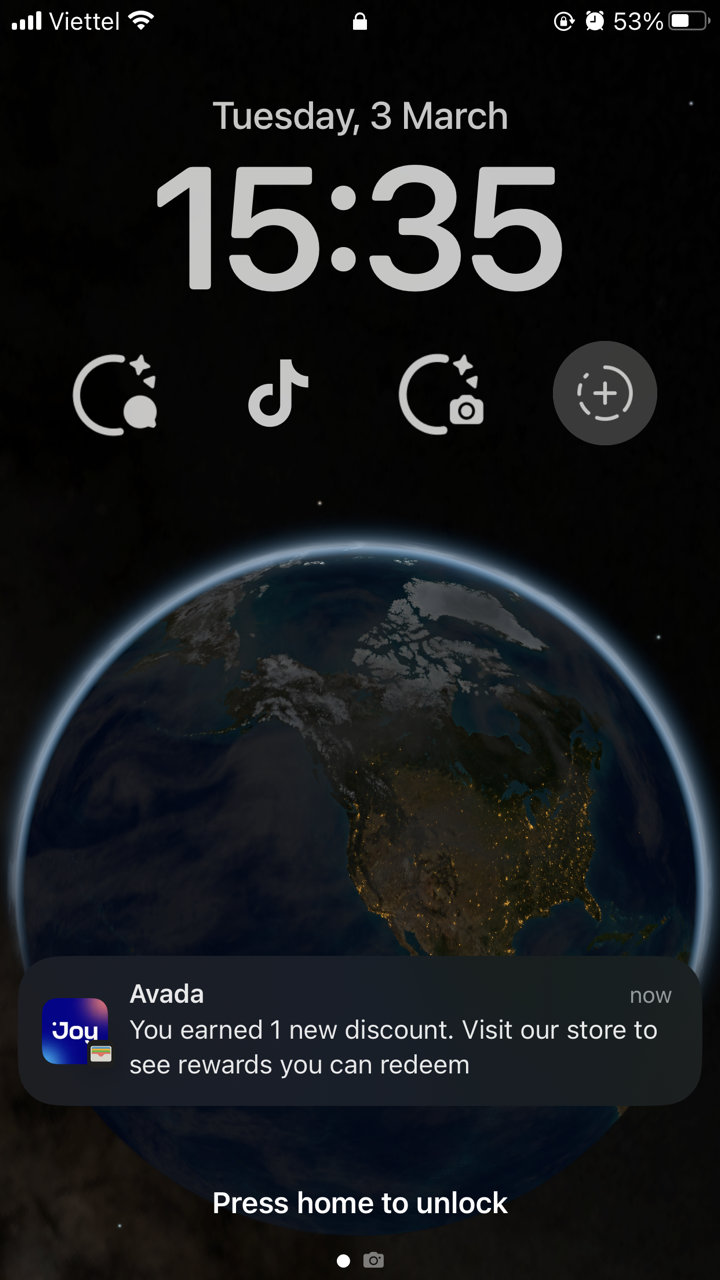
Once your customers add their loyalty pass to Apple Wallet, you can send them real-time push notifications whenever key loyalty events happen. This helps you:
- Re-engage customers passively — alerts appear on their iPhone lock screen without needing any app open
- Confirm activity instantly — your customers know their points were counted or rewards were applied
- Drive tier motivation — celebrate upgrades and nudge customers to act before a downgrade
Requirements
- Joy plan: Advanced or above
- Your Apple Wallet Pass must be enabled and saved in Joy admin
- You must manually turn on each notification type (all are off by default)
- Your customer must have added their loyalty pass to Apple Wallet
How to set up
Step 1: Go to Apple Wallet Pass Setting
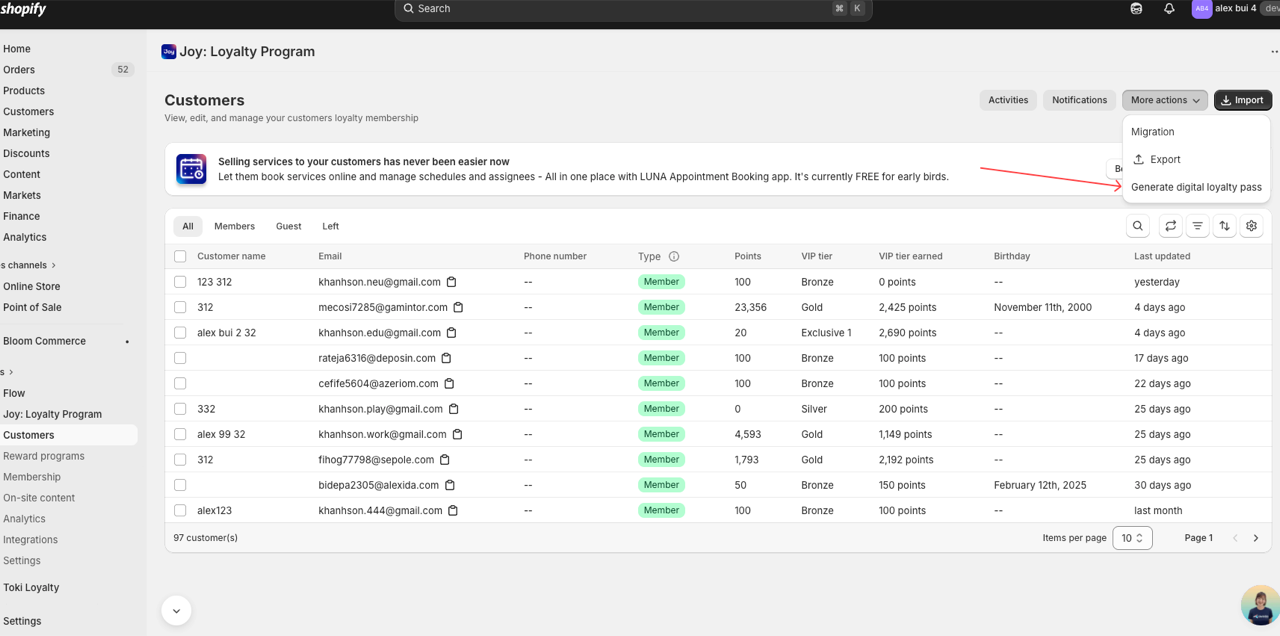
Go to Customers → Generate digital loyalty pass
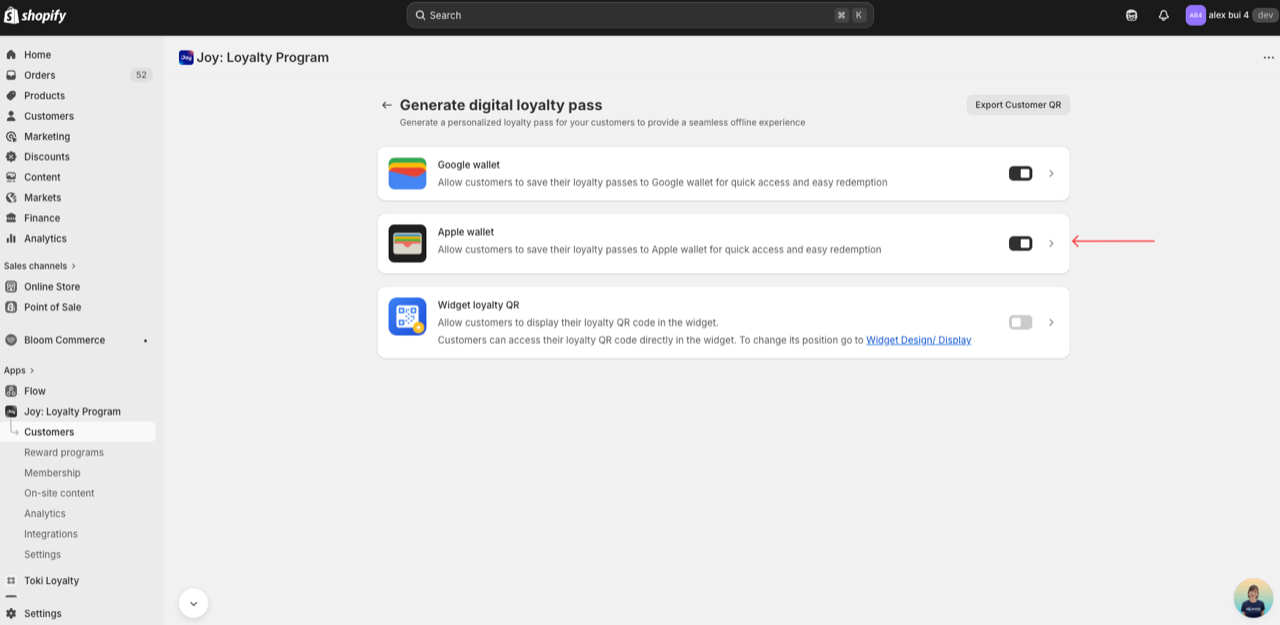
Choose Apple Wallet
Step 2: Open Notification Settings
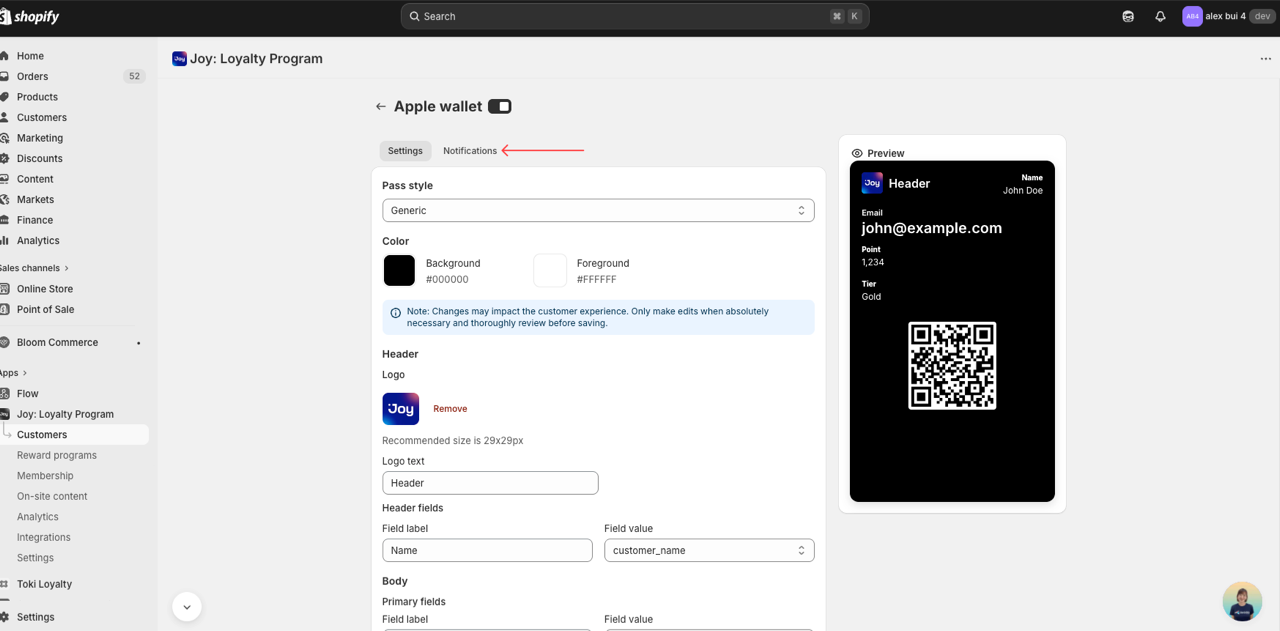
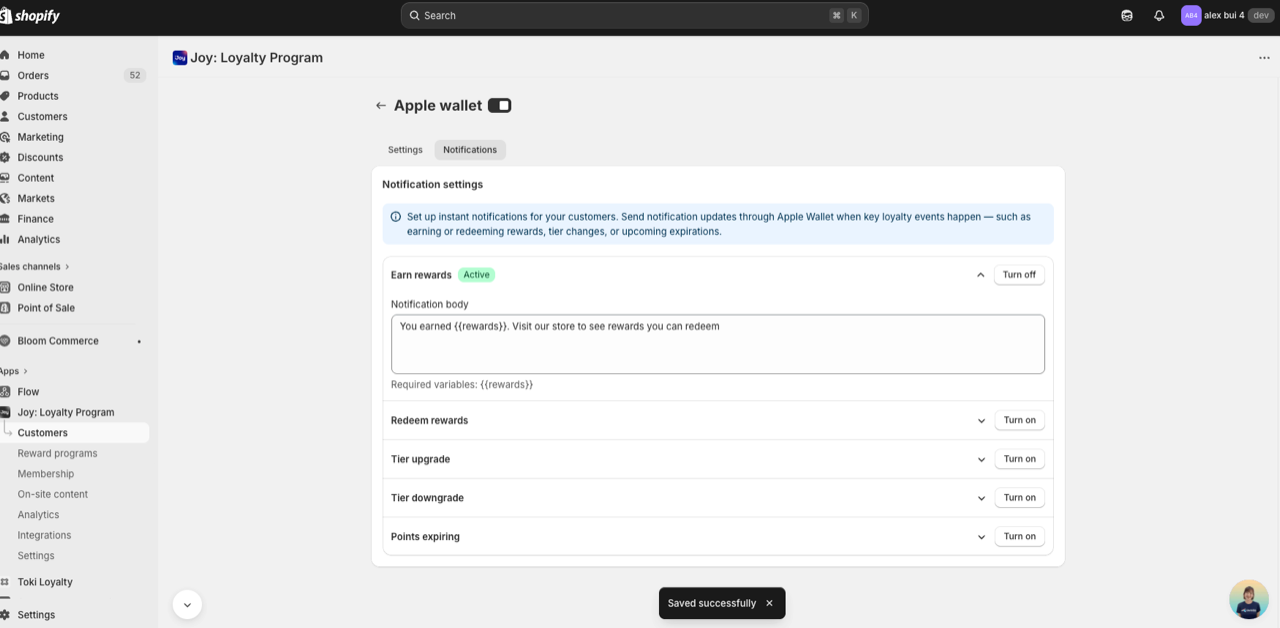
Go to Notifications tab
You'll see a list of 7 notification types. Each shows its current status (Active badge if on) and a Turn on / Turn off button.
Step 3: Configure each notification
Click any notification row to expand it and edit the message body.
| Notification type | Triggers when | Required variables |
|---|---|---|
| Earn rewards | Your customer earns points from any activity | {{rewards}} |
| Redeem rewards | Your customer redeems points for a reward | {{points}}, {{program}}, {{balance}} |
| Tier upgrade | Your customer moves up to a higher VIP tier | {{oldTier}}, {{newTier}} |
| Tier downgrade | Your customer drops to a lower VIP tier (e.g. after a refund) | {{oldTier}}, {{newTier}} |
| Points expiring | Your customer's points are about to expire | {{balance}} |
| Coupon expiring soon | A coupon your customer holds is about to expire | {{couponCode}}, {{expiryDate}}, {{daysRemaining}} |
| Coupon expired | A coupon your customer holds has just expired | {{couponCode}}, {{expiryDate}} |
Each notification has a Notification body field with a default message pre-filled. You can edit the text freely — just keep the required variables (shown below the text field) so Joy can fill in the correct values for each customer.
Set how early to remind for Coupon expiring soon: expand the Coupon expiring soon row and enter how many days before expiry the reminder should go out (e.g., 3 for 3 days ahead). Coupon expired fires the next day after the coupon becomes invalid — no delay setting needed.
Example — Earn rewards (default):
You earned {{rewards}}. Visit our store to see rewards you can redeem
Step 4: Turn on and save
Click Turn on for each notification type you want active, then hit Save at the top of the page.
Your customer's experience
When a qualifying event occurs (e.g. your customer places an order and earns points), Joy automatically:
- Detects the loyalty event
- Sends a silent push to Apple's notification service (APNs)
- Your customer's iPhone fetches the updated pass
- A lock screen notification appears with your customized message
Tapping the notification opens their loyalty pass directly in Apple Wallet with the latest points and tier info.
Notifications from connected apps
If you use apps like Wishlist Plus (price drop, back in stock alerts) or Joy Subscription (renewal, payment reminders), they can also send push notifications through this same wallet pass — always shown under your store's Joy Loyalty branding, never the connected app's name.
Turn this on or off with the Notifications from connected apps toggle in the same Notifications tab. Like every other notification type here, it only reaches customers who've already added the pass to Apple Wallet.
FAQ
Do my customers need to do anything after adding the pass? No. As long as they've added the loyalty pass to Apple Wallet and have Wallet notifications enabled on their iPhone, they'll receive alerts automatically.
Why isn't a customer receiving notifications? Ask them to check: iPhone Settings → Notifications → Wallet and make sure notifications are allowed. Also confirm they've actually added the pass (not just viewed it).
What if I turn on a notification but haven't finished setting up the pass? Notifications won't send until your Apple Wallet Pass is fully configured and enabled. Set up the pass first under Customers → Loyalty Pass → Apple Wallet → Settings tab.