Joy and Air Reviews
Learn how to integrate AirReviews with Joy Loyalty Program to reward customers for reviews, enhance trust, and drive conversions to your Shopify store.
Who can use this feature?
This feature is available for Essential, Advanced and Ultimate plans.
In this article, we will guide you on how to make the integration between Joy and Air Review to allow customers to earn points for feedback on your products.
Make sure that you have both apps installed on your Shopify store:
- Air Reviews: https://apps.shopify.com/air-reviews (opens in a new tab)
- Joy: https://apps.shopify.com/joyio (opens in a new tab)
Get authentication keys from Air Reviews and connect with Joy
Go to Air Reviews``>``Settings``>``Manage keys to find your pair: App ID and Secret key
Get back to the Joy app and go to the Integrations > Air Reviews page
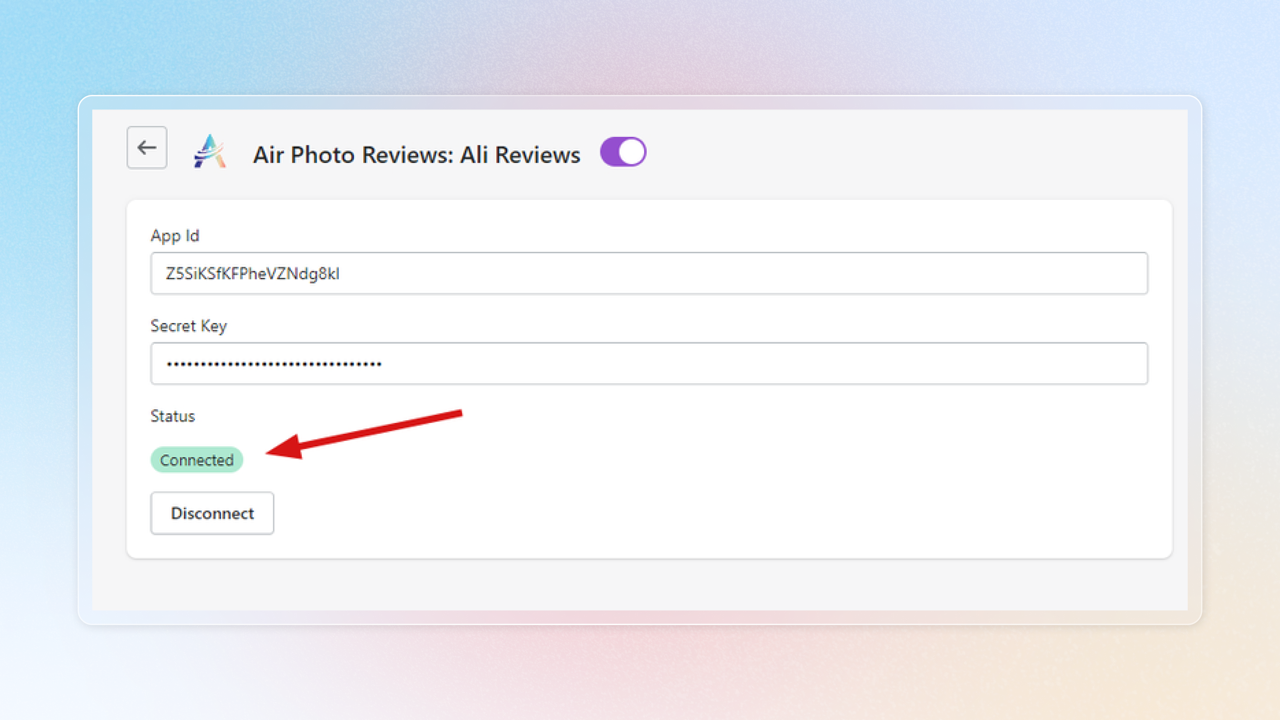
Store Air Reviews pair of keys in Joy and test the program
Store Air Reviews pair of keys in Joy
Go to the Rewards programs page, and create the Write review program
You will see the option for Air Reviews shown as Connected
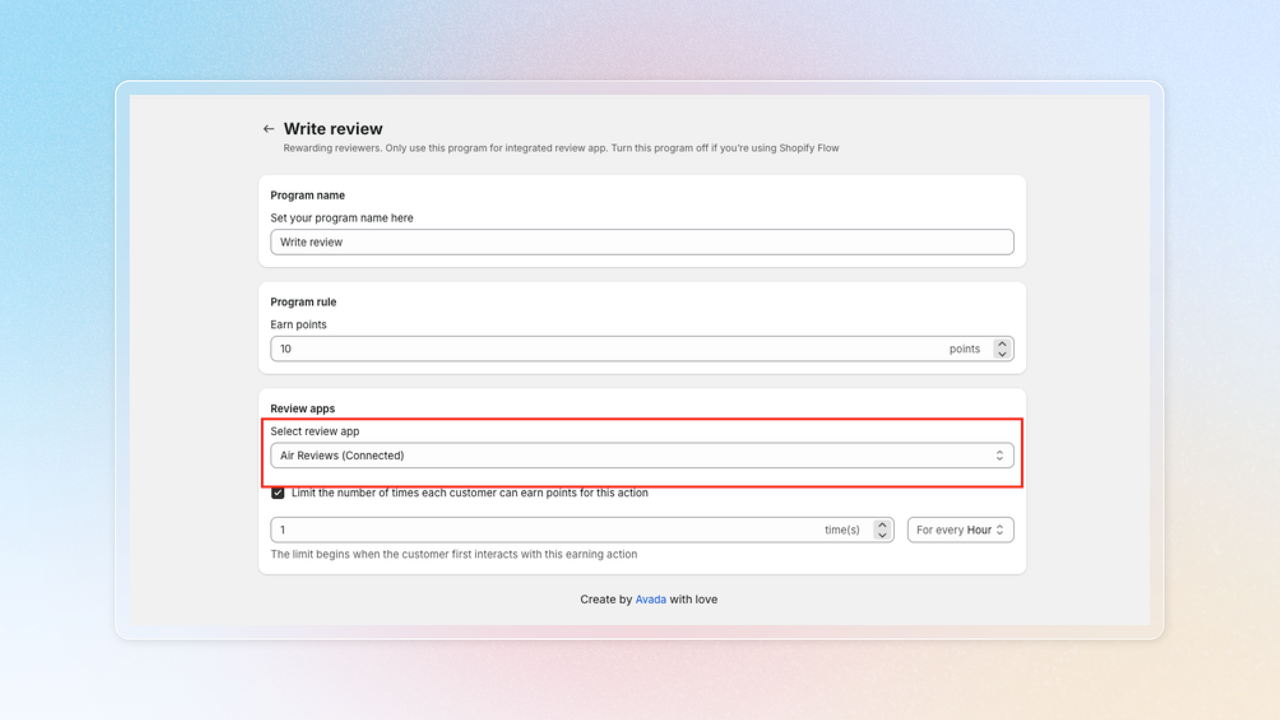
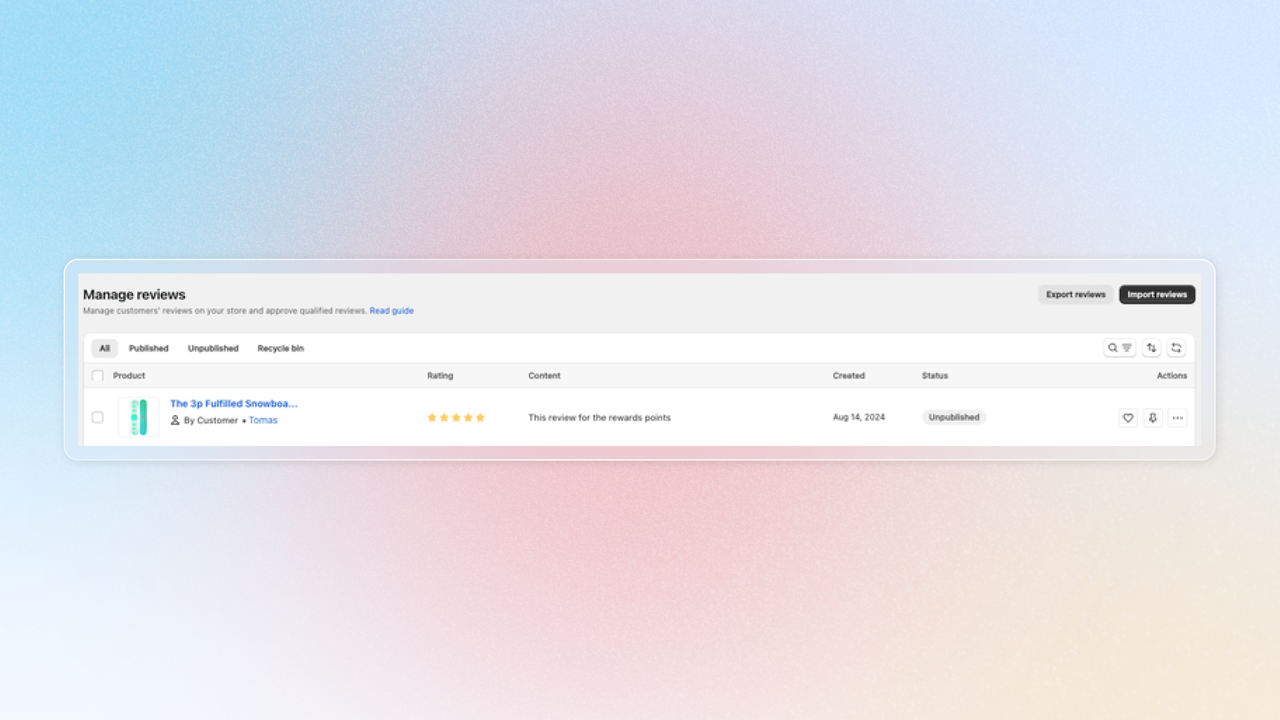
Test the program
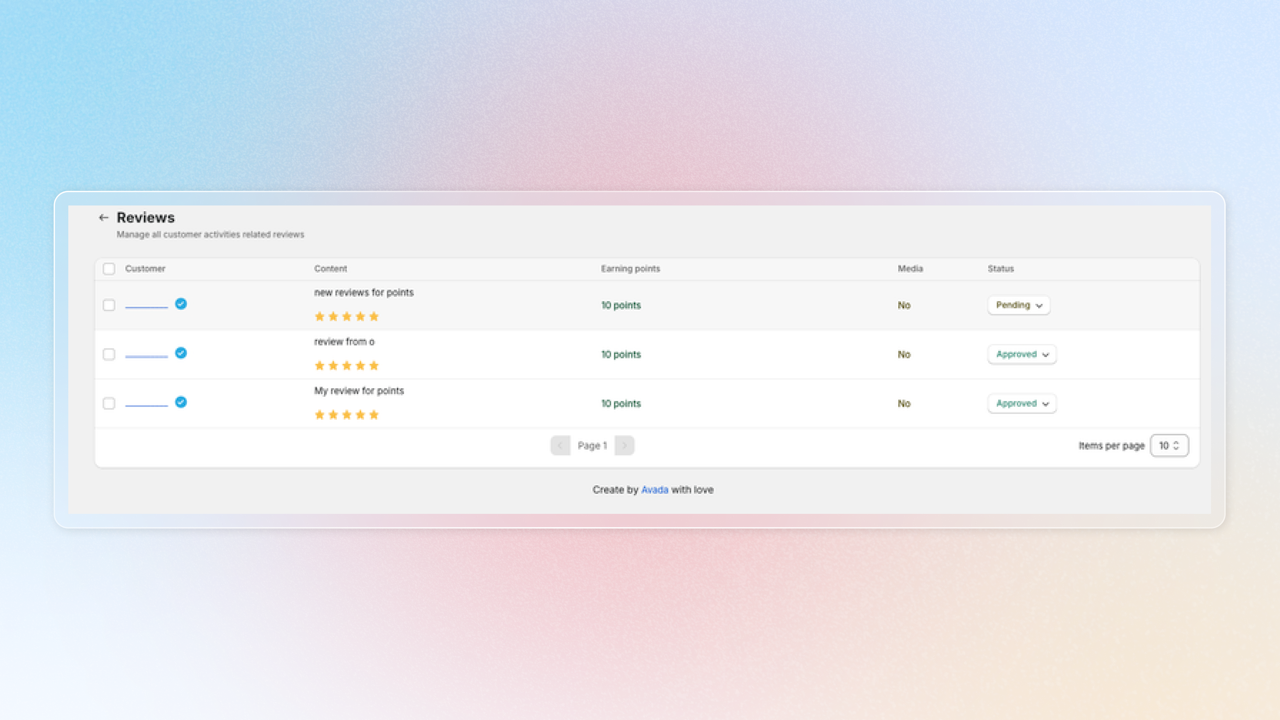
Visit the Activities > Review activities > View all reviews activities
Customers won't see their balance updated until the reward is approved, preventing abuse of points through reviews
Show customer reviews in the Unified Widget
Once Joy and Air Reviews are connected, you can surface a Reviews tab directly inside the Unified Widget — so customers view the reviews they've written and submit new ones without leaving the loyalty widget. Joy renders the entire experience in your brand styling; review data is served by Air Reviews behind the scenes.
What customers see in the tab:
- Each review with its date, product (and thumbnail), star rating, review text, status (Published or Pending), and points earned
- A Write a review action that opens an inline form inside the widget — no redirect
- An empty state prompting first-time reviewers to write a review and earn points
How to add the Reviews tab
Reviews appear after a customer is identified (logged in). Points show once Air Reviews approves the review — pending reviews display without points until approval. This works alongside the existing Write review earning program.